
🤖 It's configured — now where do I use it? The full AI feature map
It's configured — now where do I use it? The full AI feature map
| Module | Feature | Where to find it |
|---|---|---|
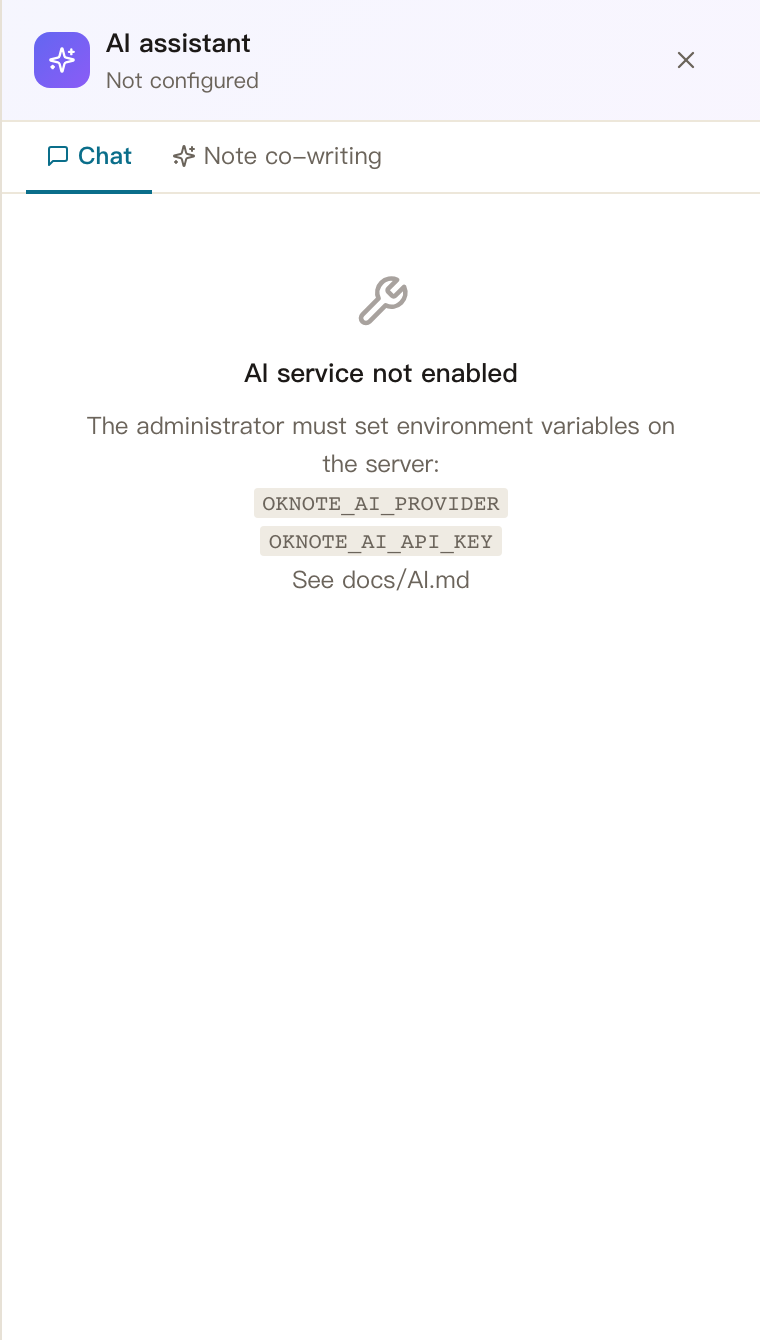
| Notes | Summarize note / Extract tags / Translate to English / Translate to Japanese / Generate chart / free-form Q&A | open any note and click the ✨ floating button at the bottom right to open the AI panel |
| Notes | Put an AI answer into the note | click "Insert to Note" in the AI panel |
| AI summary (batch-organize and classify mail) | mail sidebar → Smart views → AI summary | |
| AI draft reply (custom instructions supported) | open an email → "AI draft reply" | |
| Tasks | AI quick task (natural language / voice) | AI floating button at the bottom right of the Schedule view |
| Tasks | AI-generated weekly / monthly reports | Report view → "Generate report" |
The note AI panel deserves a closer look: its chat mode answers questions with the current note as context — open a long meeting note and simply ask "what do I need to follow up on here?". And "Generate chart" turns data found in your note into a bar, line, or pie chart and inserts it right into the body.