🔬 MindSparks: Plan Exploration and Multi-Model Comparison
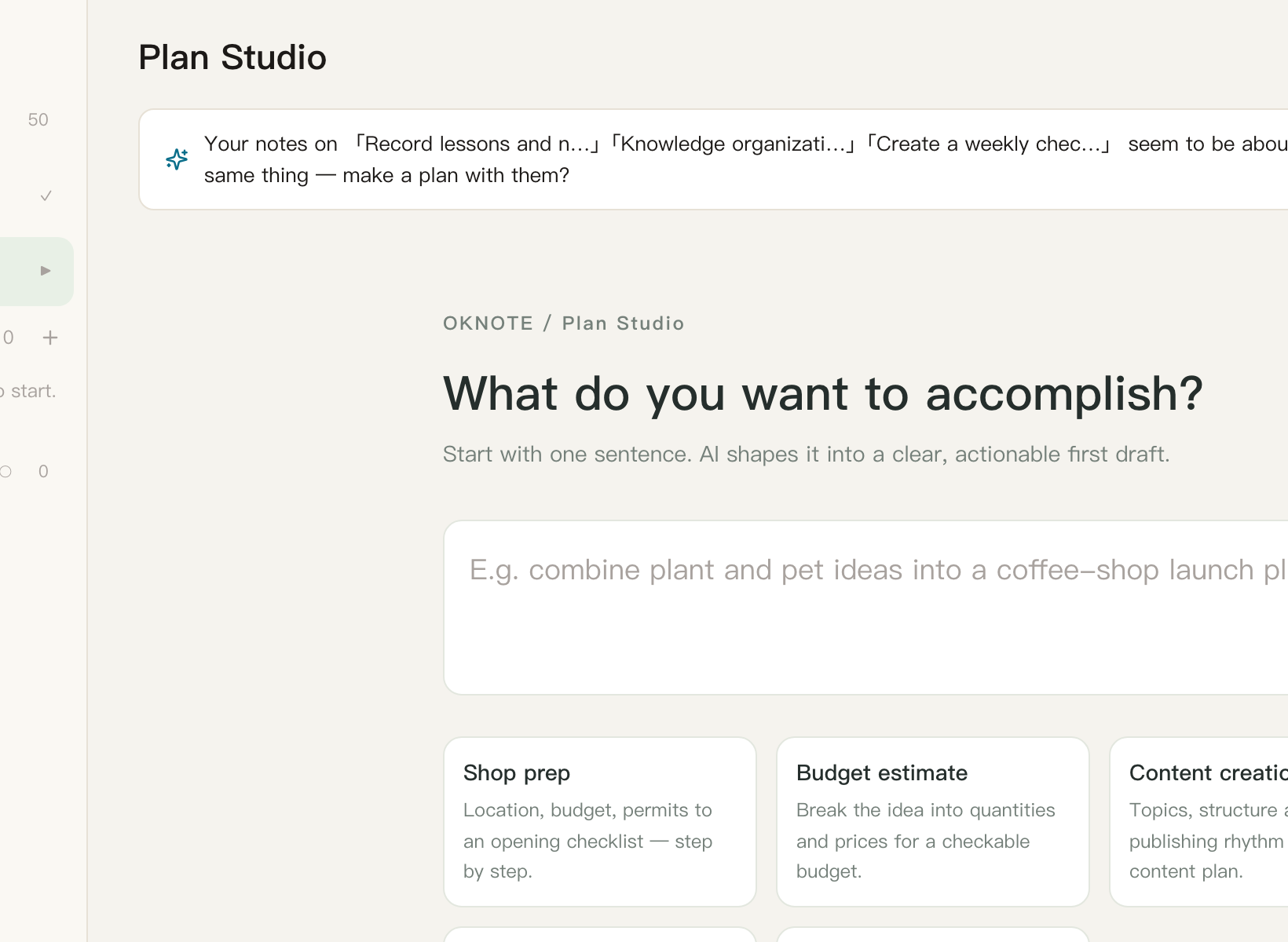
Spotted a batch of fragments on the planet that all seem to be about the same thing? That's the moment to make a plan. The Workshop works like this: you give it one sentence of a goal, and AI turns it into a clear, actionable first-draft plan; if you're not satisfied, have it draft another — and you can let different AIs each draft their own version, compare them side by side, and make the final call yourself.
Three ways in
All three roads lead to the Workshop:
- Click Workshop in the module's left navigation to start from scratch;
- Use Make a plan with these on the Fragment Planet, carrying your selected entries in;
- The AI suggestion banner at the top of the module — for example, "the entries A, B, C seem to be about the same thing — make a plan with them?" — fills everything in with one tap.
Starting a plan
The entry page has only a handful of things; it takes a minute:
- Goal: one sentence stating what you want to accomplish, such as "open a pour-over coffee shop at the neighborhood entrance". You can also paste images straight into the goal box (up to 6 images, each at most 2 MB — oversized ones are skipped with a notice), and AI will use them for visual analysis.
- Direction template: Open a shop / Engineering budget / Content creation / Research & decision / General goal — single choice. The template decides the default scoring dimensions for comparison (for example, opening a shop defaults to hard constraints, investment and ongoing costs, executability, and so on).
- Additional sources: pick related content from fragments and notes to hand to AI; adding nothing works too.
- AI model: a dropdown. The default "Default (use the AI from Settings)"; expanding it groups every configured model by provider account.
- Thinking mode: a three-state toggle — thinking on (more thorough but slower and costlier in tokens) / fast draft / model default. Some models force thinking on, and the toggle tells you it can't be turned off.
Click ✨ Make my first draft, and AI starts streaming the document, with the draft on the left and the generation area on the right; you can Stop anytime during generation, and it shows "using: model name · N seconds". Failures come with explicit notices — AI not configured, provider error, generation timeout — follow the notice and retry.
Multi-model plan comparison (the heart of this part)
The first draft is only the starting point. In the "Refine together" area on the right of the workspace are the key operations:
- Have another AI draft one independently: with a different model (or the same one), generate a completely independent version based on the same goal;
- Ask the current AI to review this: let the current model critique the document as a reviewer, producing a "review comments" draft you can compare against the reviewed plan at any time.
The "Advanced: carry history" option decides whether the new version brings along previous ones: no history (default for independent redrafts) / summaries of all versions (default for reviews) / full text of all versions.
Browsing versions
The Draft list on the left shows one row per version, labeled with the actual model name and thinking mode used, such as "Plan A · glm-x". Click any version to view it; at the bottom of a document you can Copy or Save as note.
Comparing plans
Once you have two or more candidate versions, the Compare plans button appears. It opens a side-by-side evaluation bench:
- Two dropdowns each pick one version (picking the same one is blocked with "two versions are identical and cannot be compared"); both documents render in two columns on one screen, while on mobile you flip through the dimensions vertically — bulk editing suits desktop better.
- The scoring table expands the template's default dimensions (opening a shop defaults to: hard constraints / investment and ongoing costs / time and dependencies / executability / main risks / evidence gaps); score each dimension for each version from 0–5, or mark it "to confirm" — dimensions lacking evidence stay blank and don't count as zero.
- Every dimension carries rubric text (for example, "5 = concrete, actionable steps; 0 = vague") — score against the rubric, not by gut feel.
- Dimensions can be added and removed: keep at least one; custom dimensions can even carry a weight (0–5), and weights affect the final leaning.
- The Current assessment row gives a live verdict: "current scores lean toward: Plan X". When information is insufficient it honestly says "not enough information for a reliable leaning; fill in the to-confirm items first"; when the two versions are close, it won't invent a winner.
Making the call
At the bottom of the compare bench you can optionally fill in "reason for the choice (optional)" and "assumptions still to verify (optional)", then click Adopt A or Adopt B. The decision is written into the banner at the top of the workspace: "last decision: adopted Plan X · reason: …". If the goal changed in the meantime, the banner reminds you "goal updated, consider re-evaluating".
The design principle is printed right in the workspace: independent answers — both versions respond to the same goal; you judge, and AI doesn't make the call for you.
Three practical comparison plays
- Strong-plus-cheap pairing: run 2–3 versions with an inexpensive model to explore, then produce the final version with a strong model (thinking mode on) — balancing cost and quality.
- Same model, different modes: draft one version with thinking on and one off using the same model, to find the balance point between depth and speed.
- Cross-review: hand model A's plan to model B with Ask the current AI to review this and let it pick the plan apart; the review itself is also a draft and can be saved as a note for the record.
Keep an eye on cost
- Every plan version is labeled with the model used; an interrupted generation produces no complete document, and by your provider's billing rules there's nothing worth paying for.
- The server's AI usage panel counts calls per model and estimates spend at public list prices; exceeding the monthly budget only raises a reminder and never interrupts you.
Wrapping up
Happy with the plan? Click Start executing this plan — the next step is Landing a project. Not quite there yet? Go draft another version, or Save as note to keep the current one on file and keep polishing.