🤖 AI providers and module configuration
AI runs through every corner of OKNote: note summaries, translation, chart generation, mail summaries, AI draft replies, weekly and monthly reports… and they all share one AI configuration. Set it up once and everything unlocks — all it takes is an API key from a model provider.
Set up in three minutes
Open Settings (⌘,) → AI Configuration:
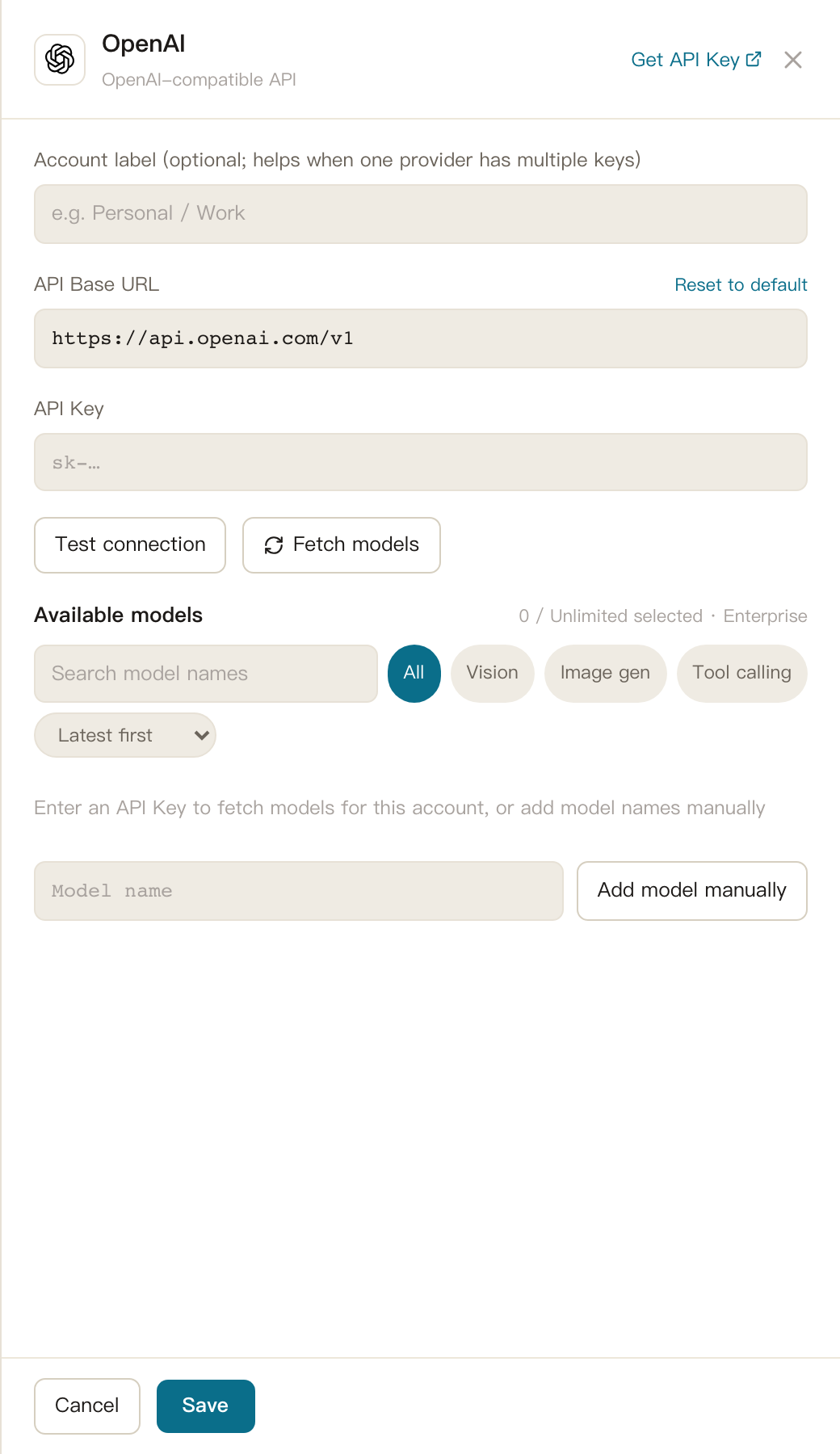
Pick a provider: the dropdown ships with presets for the major providers —
Type Providers International OpenAI, Anthropic Claude, Google Gemini, xAI Grok, OpenRouter, Mistral, Groq China-based DeepSeek, Zhipu GLM, Kimi (Moonshot AI), Qwen (Tongyi), Doubao (Volcengine), SiliconFlow, Tencent Hunyuan, Baidu ERNIE Local / custom Ollama, LM Studio, Custom (any OpenAI-compatible endpoint) Selecting one fills in the Base URL automatically — you usually don't need to touch it.
Paste your API key: the one you created on the provider's site (how-to below).
Pick a model: the field suggests recommended models for that provider — just click one.
Click "Test": on success you'll see the model's response and how long it took; on failure, check that the key is correct and the account has credit.
Save. Done!
🔒 Your API key is stored AES-256-encrypted on your own server. It is never shared with any third party.
Getting an API key
Every provider follows the same shape: sign up on their site → open platform / API console → create an API key → copy it. Two examples:
OpenAI
- Open platform.openai.com, sign in, and go to "API keys".
- "Create new secret key", then copy and store it.
DeepSeek (great price-to-performance)
- Open platform.deepseek.com, sign up and sign in.
- Go to "API Keys" in the left menu and click "Create API Key".
- Copy the generated key starting with
sk-(it's shown only once). A small top-up goes a long way.
Zhipu (open.bigmodel.cn), Kimi (platform.moonshot.cn), Qwen (Alibaba Cloud Model Studio), and the rest work the same way — create a key on each platform's "API Key" page.
Ollama local models (completely free — data never leaves your machine)
- Install Ollama on your server (or your own machine): download it from ollama.com.
- In a terminal, run
ollama pull qwen3(or any model you prefer). - In OKNote, choose "Ollama (local)" as the provider. The Base URL defaults to
http://localhost:11434, no API key needed — enter the model name you pulled and hit Test.
Note: local models (Ollama / LM Studio), custom providers, and configuring multiple providers are advanced capabilities that come with certain license tiers. If an option shows a lock icon, your current plan doesn't include it.
Advanced: a different AI for each module
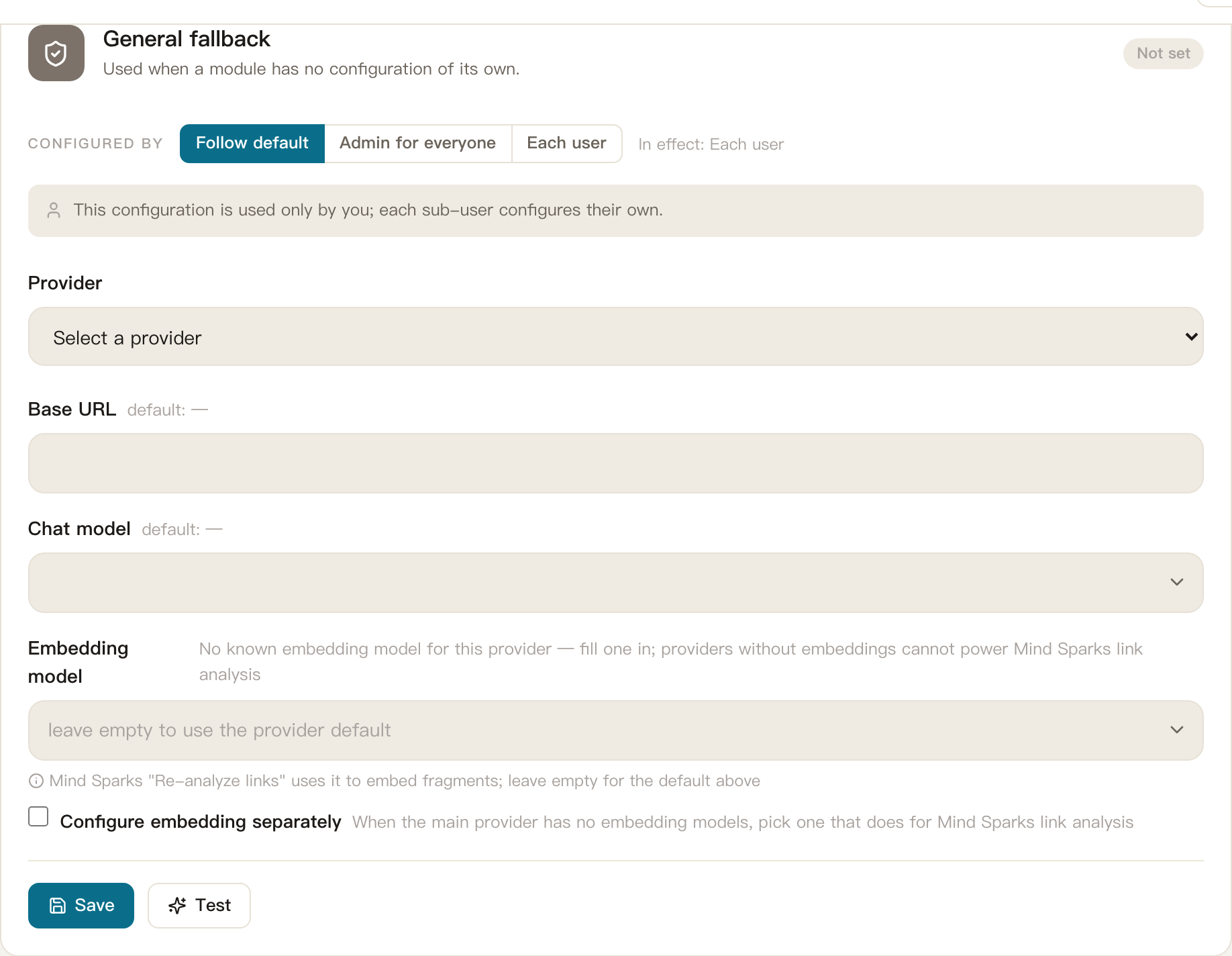
The settings page has a "Per-module config" switch (available on certain license tiers). Turn it on and you can configure separately:
- Notes / Report AI — note summaries, translation, charts, and the weekly/monthly task reports
- Mail AI — mail summaries, classification, AI draft replies
Each can use a different provider or model. A typical setup: a strong model on the notes side to keep report quality high, and a cheap, fast model churning through mail summaries. With the switch off, everything runs on one shared configuration — which is perfectly fine too.
On team deployments, an admin can also choose to share their AI configuration with all members, so nobody else has to get their own key.