💡 Setup and capturing sparks
MindSparks is OKNote's dedicated module for collecting ideas: jot down a short entry of one sentence or less (a "fragment"), AI automatically classifies its shape, fragments cluster into constellations on the Fragment Planet, pick a related batch and let AI draft a plan, and when the plan looks right, launch it as a project and execute.
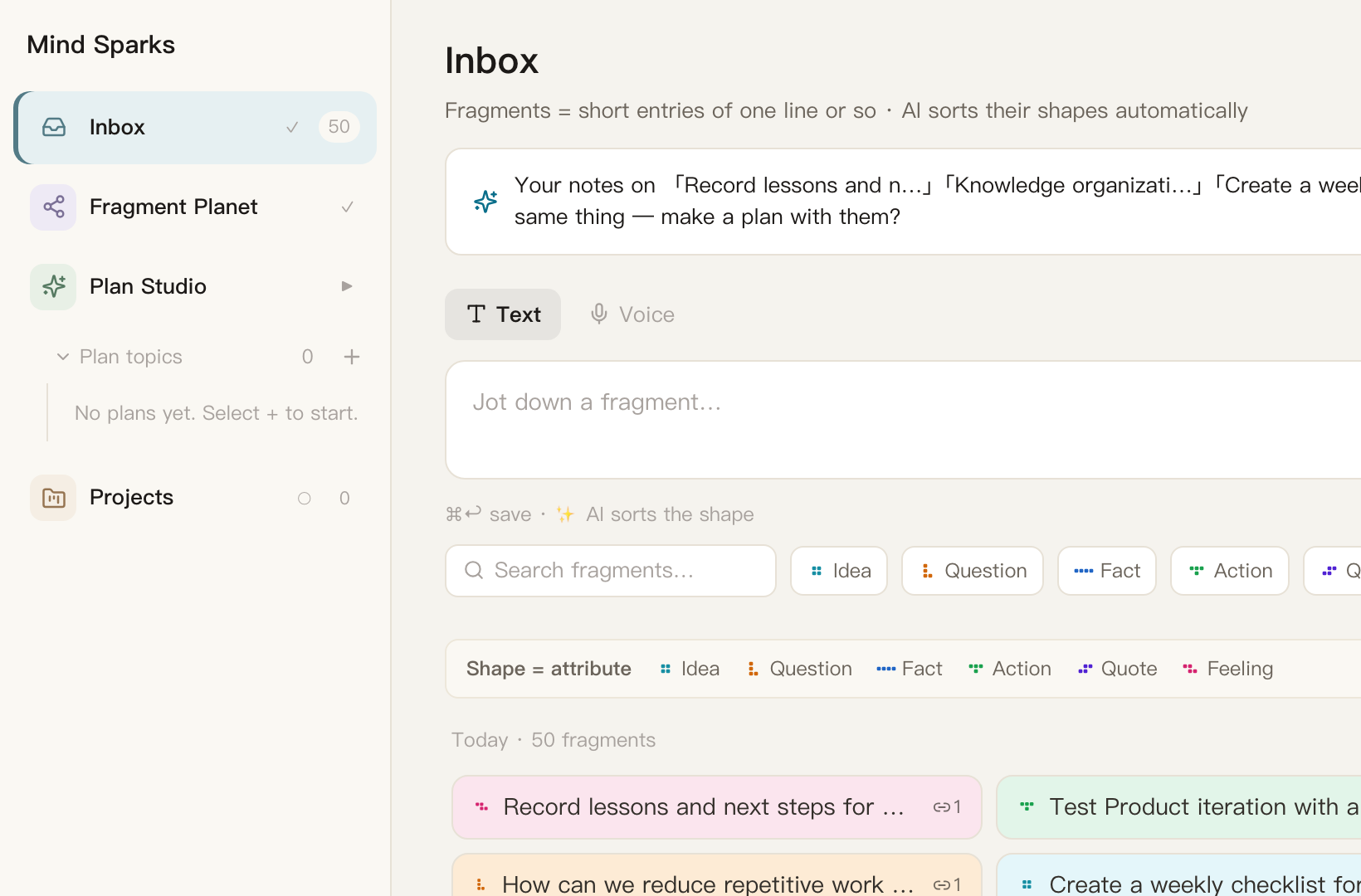
The Inbox subtitle says it plainly: a fragment is a short entry within one sentence, and AI classifies its shape automatically.
This MindSparks User Guide is split into five parts, in the order you'll use them: preparation (this part) → capturing fragments (including mobile) → the Fragment Planet → plan exploration with multi-model comparison → landing a project. They map one-to-one to the module's journey stages: Inbox, Planet, Workshop, Projects.
Where MindSparks lives
- In the leftmost module rail, the lightbulb icon sits below Notes, Mail, Tasks, and Attachments, with the shortcut ⌘⇧5.
- Press ⌘⇧N anywhere to open the global quick-capture overlay — capture without leaving the module you're in.
- On mobile, the lightbulb entry is in the bottom tab bar, with the same features as desktop.
Don't see the lightbulb? Your server version is too old — upgrade the server and it appears.
Three things worth setting up first
| Setup | What happens without it | Where |
|---|---|---|
| AI provider | Fragments still save, but no automatic shape classification, and Planet/Workshop stay unavailable | Settings → AI |
| Speech recognition (ASR) | Recording still works, but no automatic transcript — organizing key points is fully manual | Settings → AI |
| Embedding model | No planet connections or related-fragment suggestions; manual linking only | Settings → AI |
All three live on the same AI settings page. The 🤖 AI guide walks through getting an API Key in full; here's the MindSparks-relevant summary:
- Open Settings (⌘,) → AI: pick a provider, paste your API Key, click Test, save.
- For voice-to-text, also pick a speech recognition model on that page.
- For relation analysis, configure an Embedding model on the same page — per provider, or leave it empty to use the default above.
Budget tip: domestic providers like DeepSeek or Zhipu cost only a few dollars for a long time; local Ollama is completely free and keeps data on your machine.
Know your plan quotas
| Plan | Fragment limit | Voice captures | Planet limit |
|---|---|---|---|
| Free | 60 | 8 | 1 (reserved) |
| Family | 1000 | Unlimited | 20 (reserved) |
| Pro | Unlimited | Unlimited | Unlimited |
- The quota pill (used/max) lives in the Inbox header; it turns orange at 90% and takes you straight to the upgrade page.
- When you hit the cap, new captures are blocked with an upgrade prompt; viewing, editing, and deleting existing fragments is never affected.
- Planet creation is still in development — the planet quota is reserved for now.
- Occasionally one extra entry slips through with a notice — that's a grace pass so your last thought still gets saved, not a quota increase.
Suggested reading order
- Capturing fragments (including mobile) — master the capture habit first; it's the foundation of everything.
- The Fragment Planet — once you have enough fragments, learn to spot connections on the planet.
- Plan exploration with multi-model comparison — the highlight: let several AIs each draft a plan for the same goal, then score them side by side.
- Landing a project — after you pick a plan, turn it into a project with docs and tasks.
MindSparks: Capturing Fragments (Including Mobile)
The first lesson of MindSparks has exactly one action: capture it. This part covers every capture method — quick typing, the global overlay, voice recording, and audio upload — plus how it works on mobile.
Quick capture by typing
The Inbox input box
The MindSparks module opens on the Inbox, with an input box at the top: "记下一个词条…" (jot down an entry), plus the hint ⌘↩ save · ✨AI auto-classifies shape. Press Enter or ⌘↩ to save.
- Two syntaxes are supported:
#tagattaches a tag to the fragment;[[entry]]automatically links to an existing fragment when it matches exactly. - Identical entries are blocked by deduplication with a notice.
- Drafts are stored locally per user and server — switch away halfway and come back to find them intact. You can capture offline too; everything uploads automatically once you're back online.
The global quick-capture overlay (⌘⇧N)
Press ⌘⇧N in any module, any screen, and a large capture card appears at the center:
- Large, borderless text input; Enter saves — note the window stays open after saving, so you can keep capturing in a row.
- Below, a capsule stream shows "saved this round: N", and the × on each capsule undoes that entry (deletes it immediately).
- Click Done or press Esc to close.
The standard posture while walking, in meetings, or commuting: ⌘⇧N → type → Enter → type the next one.
Voice capture
Switch to the Voice tab inside the Inbox. Two methods:
| Method | Best for |
|---|---|
| Record | Tap Start Recording and just talk; tap Stop Recording when done — the speech is transcribed automatically |
| Upload audio | Audio files already on your phone or voice recorder; transcription and organizing work the same as recording |
Organizing (the recording detail page) has two steps:
- Left side: play the recording and proofread the transcript — you can fix recognition errors directly. If speech recognition isn't configured, you'll see a notice saying there's no automatic transcript; playback and manual organizing still work.
- Right side: pick key points — select a passage of the transcript and tap Save selection as a key point, or add one manually; each key point is limited to one sentence. When done, tap Confirm key points: each key point becomes a fragment in the Inbox, and the recording is marked as converted.
A few notes:
- Filter by To organize / Done; deleting a recording never deletes the fragments already converted from it.
- If you see a microphone-permission notice, allow the browser or app to use the microphone in system settings and retry.
- When recording isn't supported in a web environment (for example over an http address), you'll be guided to upload audio instead.
- Offline recordings are saved on the device and uploaded and transcribed automatically once you're back online.
- The free plan allows 8 voice captures; one recording or one uploaded audio file counts as one capture.
Capturing on mobile
In the mobile browser or app, the lightbulb entry sits in the bottom tab bar:
- Typed capture works exactly like desktop, and the global capture entry is available too.
- Recording uses the native system recorder; allow the permission prompt and go — transcription and key-point organizing afterwards are identical to desktop.
- Uploading audio is handy for importing recordings made on other devices.
Capture principles
- One sentence per fragment — don't be greedy: fragments earn their value by being combinable later; long paragraphs have to be split before they fit a plan anyway.
- Capture first, organize later: write down whatever comes to mind and leave classification, linking, and deduplication to AI and the planet.
- Tag as you go: tags like
#client #quotemake filtering and the topic basket much more useful later.
Two useful things you can do right away
- Settle into a note: the Send to… menu on a fragment tile offers Settle as note, which creates a normal note in the default notebook; the fragment then shows a Settled → note badge and won't settle twice.
- Drop fragments into a mind map: open any mind map and use the fragment tray at the bottom of the canvas — search, then drag a fragment card onto the canvas to make it a node.