🌐 Connecting devices and verifying public access
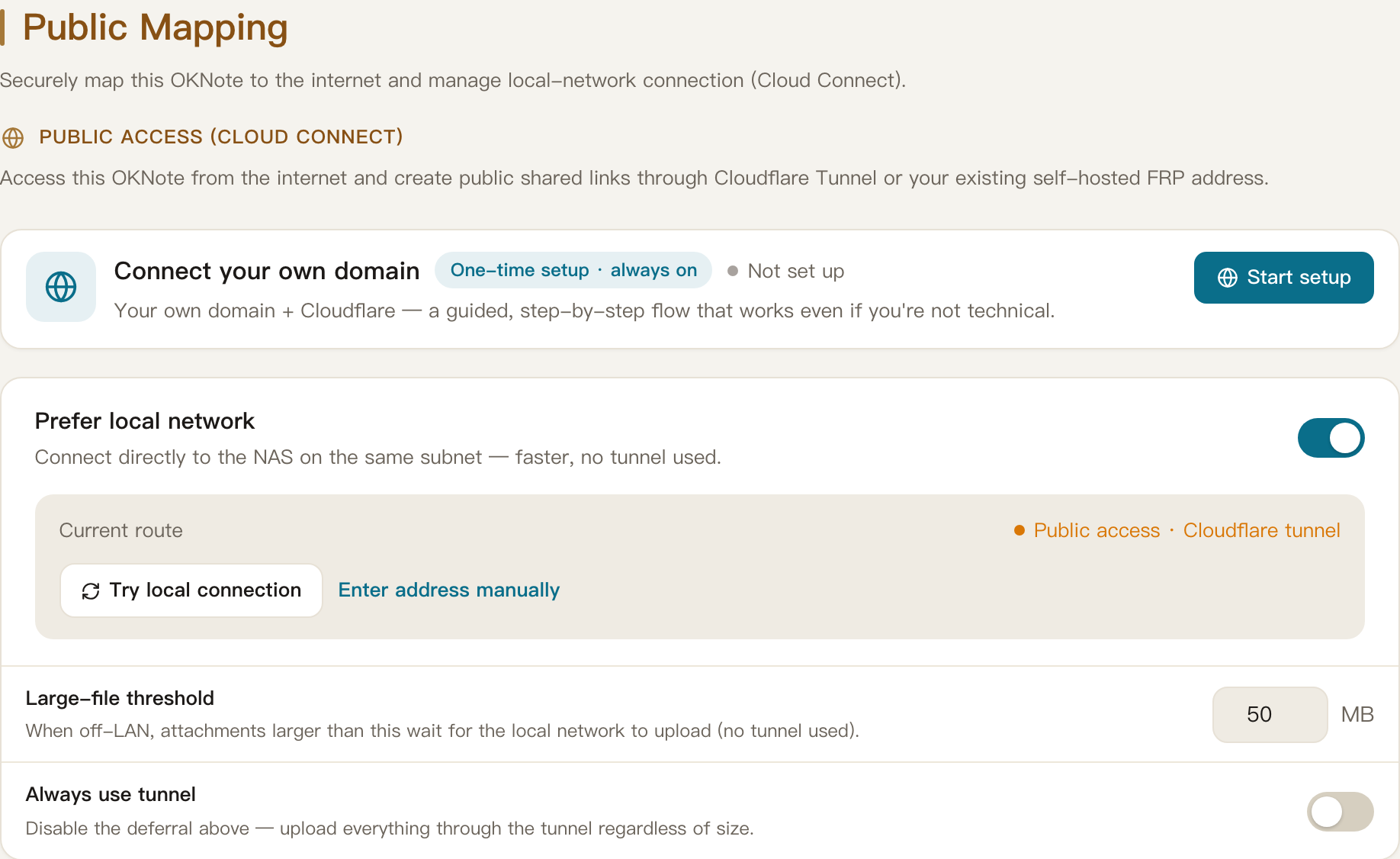
Where to configure
Settings → Public access; the Self-hosted server option on a new client's start screen.
- On the NAS or desktop server, confirm the mapping is configured and copy the complete HTTPS address, for example
https://notes.example.com. Keep the server running. - Turn off Wi-Fi on your phone and open the address over mobile data. Verify that the login page belongs to the same OKNote server.
- Choose Self-hosted server in the client and enter this address. Follow the field's API-address instructions if present. Test and save the connection. For an existing client, use Settings → Server.
- Sign in with an account created on that server. The cloud licensing account may have a different username.
- Create a test note, edit it on both devices and download an attachment. Confirm the same notebooks and content appear before using the connection for real work.
If the browser works but the client does not, check the full address, HTTPS certificate, client version and selected server mode.
After publishing: verify sync, sharing and files
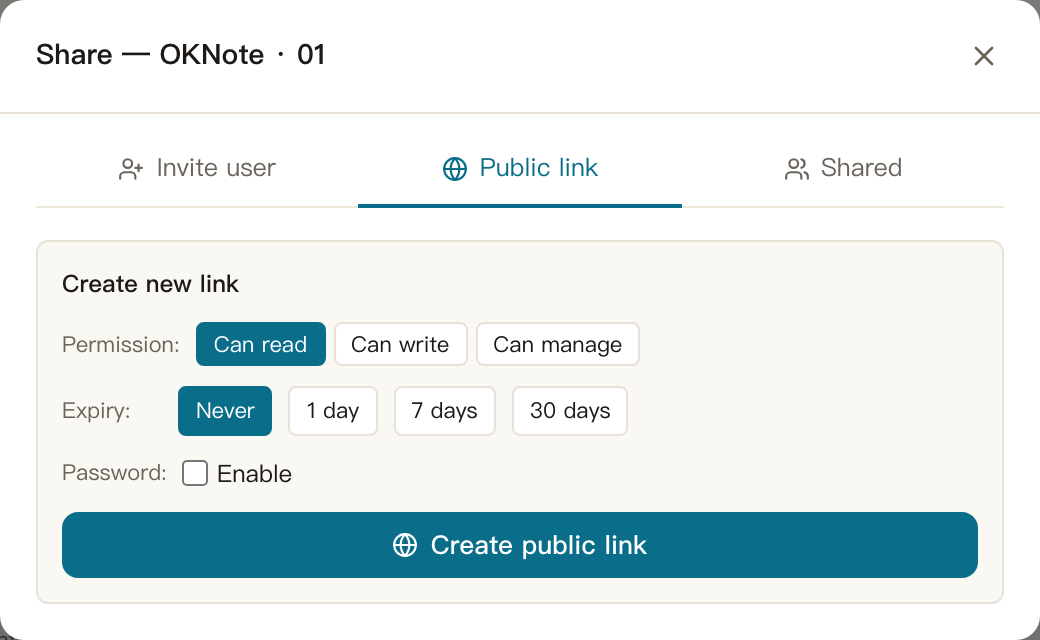
Where to configure
Settings → Public access; the Share button above a note.
- Keep your LAN management address available. Sign in over mobile data and open a note.
- Edit a test note on two devices. If pages load but changes do not arrive, check connection status and WebSocket forwarding in your reverse proxy.
- Create an expiring public link to a test note. Open it in a signed-out private window, verify the password and content, then revoke it and confirm access stops.
- Upload a small image and file; preview and download them remotely. If only large files fail, check plan and administrator limits, free storage, proxy upload limits and timeouts. Try LAN access for large files.
- Play a short meeting recording to verify audio downloads. Repeat these checks after changing a domain, certificate, proxy or client.