🎙️ Transcription: turning audio into speaker-labeled text
Transcription: turning audio into speaker-labeled text
Each recorded segment has a "Transcribe" button next to it. Click it and the audio uploads for AI processing, with progress messages like "Transcribing" and "Generating summary" along the way — how long it takes depends on the recording's length; long recordings may take a few minutes.
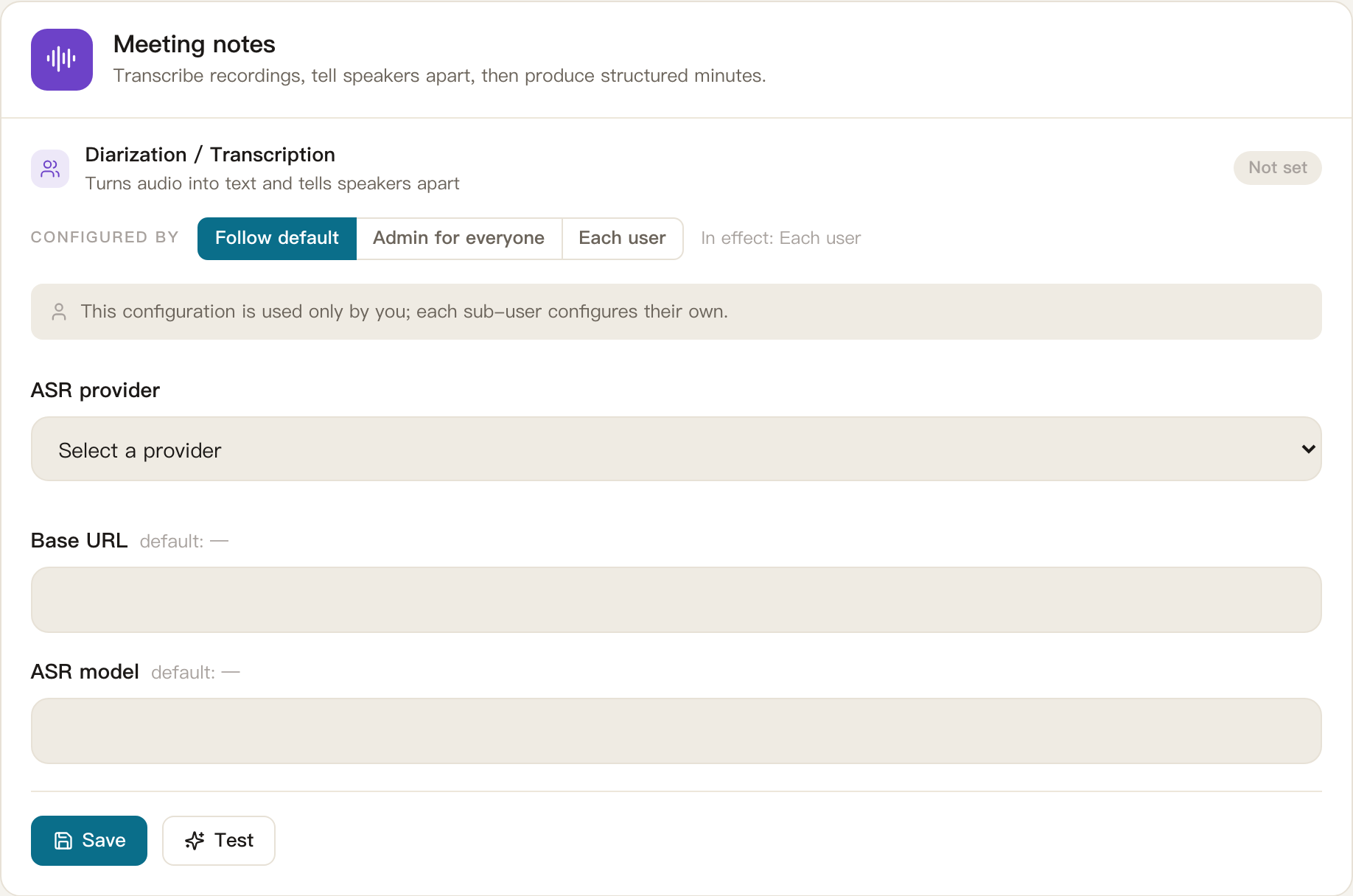
Transcription runs on an "ASR" (speech recognition) service, which is a different thing from the conversational AI you use elsewhere and needs its own setup: go to Settings (⌘,) → AI → Meeting Minutes AI, and pick an "ASR provider" and enter its key. A few built-in options:
| Provider | Notes |
|---|---|
| Alibaba Cloud Intelligent Speech (default) | Speaker diarization supported, tuned for Chinese-language meetings |
| Deepgram | Speaker diarization and multiple languages, good for international meetings |
| Self-hosted Whisper + pyannote | Audio never leaves your NAS; speaker diarization supported (Pro-tier capability) |
| Zhipu GLM-ASR | Budget-friendly, but doesn't support speaker diarization — the whole recording comes back as one speaker |
If no ASR provider is configured, the system falls back to a plain conversational model for "basic transcription" — you get text, but not who said what. If you want "speaker-diarized transcription", make sure to configure an ASR provider that supports it.
Once transcription finishes, the full transcript appears on the left: each line is prefixed with a colored dot for a different speaker (defaulting to "Speaker 1", "Speaker 2", and so on), and clicking a timestamp jumps the audio player right to that moment. Below it is a speaking-time breakdown, and you can rename each speaker with their real name and role — handy for figuring out who said what later.
Not happy with the result? Click "Re-transcribe" — this uses another transcription credit and overwrites the existing transcript and summary, with a confirmation dialog first.