
🚀 Projects and troubleshooting
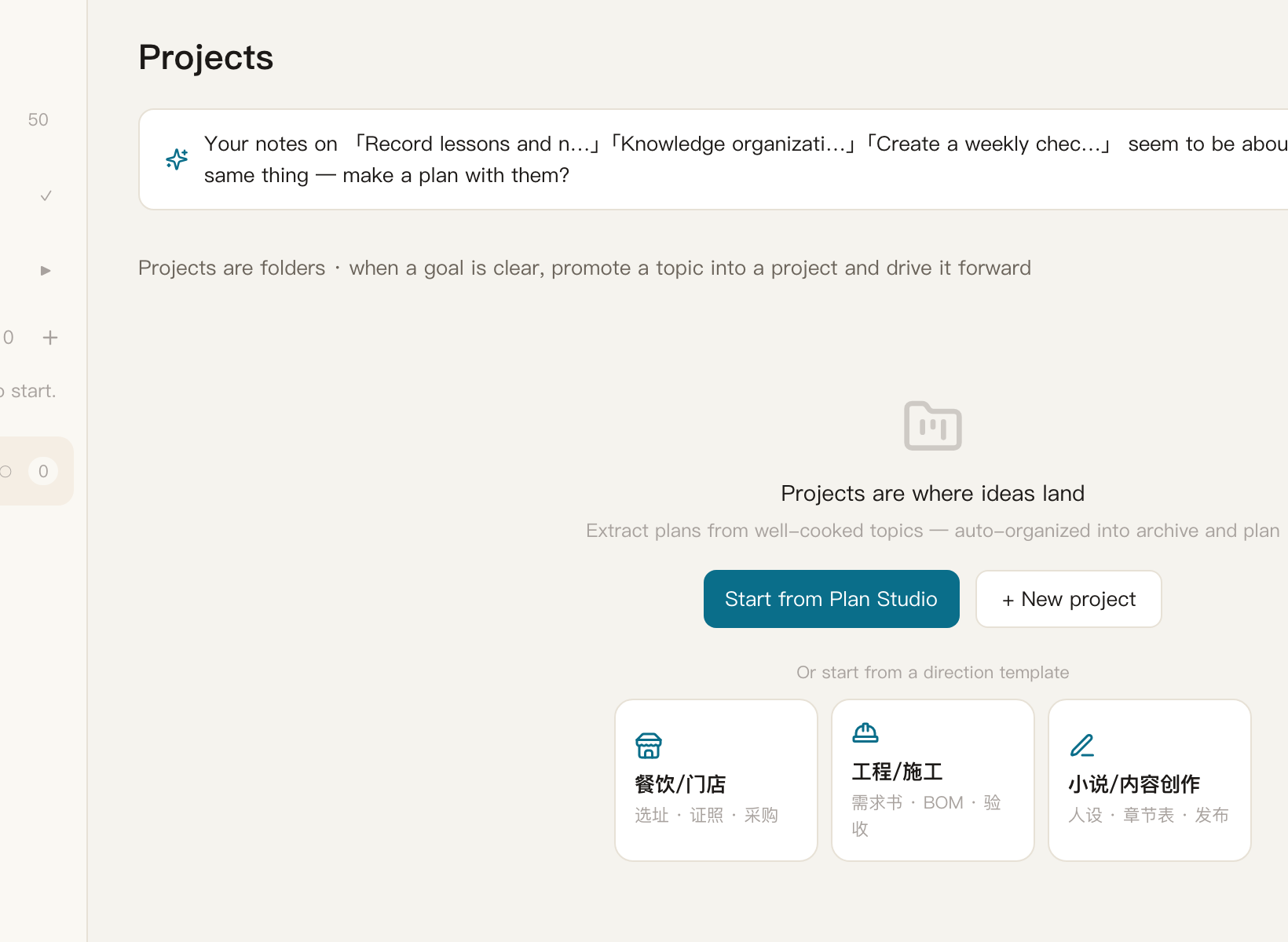
The decision is made in plan exploration; the final stretch turns it into a project that actually moves. A MindSparks project is not a static document — it's an execution workspace with docs, tasks, links, and assets.
Kickoff: from plan to project
In the Workshop, click Start executing this plan and the Start project preview dialog opens:
- The project name defaults to the first 60 characters of the goal and can be changed;
- Pick the plan version to base the project on (the dropdown labels it "Plan A · model name");
- Initial tasks (one per line): list the first few things to do by hand — AI doesn't split tasks for you; the first version of the task list is yours to define, and you know the right granularity best.
After you confirm, the view switches to Projects and opens the new project's overview.
The project list
The left side of the Projects view is the project tree:
- A project is a folder — when a goal is clear, promote a topic into a project to push it forward; create projects and sub-projects, each with a status of in progress / paused / done, and a badge showing its file and entry counts.
- The free plan allows up to 5 projects and a single level; upgrading unlocks more projects and multi-level sub-projects.
Project detail: five tabs
| Tab | What it's for |
|---|---|
| Overview | Current goal, next step (the single most worthwhile thing to do), stages/deadlines/overdue/high-priority/blocked tasks, confirmed outcomes (N of M done) |
| Docs | Structured doc blocks: goal / summary / budget / risks / decisions / specs / freeform; every block can be edited, AI-filled, or chatted about |
| Plan | Full task list with dependencies |
| Links | A wall of links |
| Assets | A warehouse for large attachments, with paste-from-clipboard support |
The Docs tab deserves a closer look:
- Blocks aren't a fixed form — add and remove them as the project needs. The budget block is a quantity × price table that totals itself.
- Hovering a block reveals three actions: Edit changes it directly; AI fill this has AI generate content from the project context, landing in the edit box for your review; Chat about this block opens a conversation panel on the right — discuss how the block should read with AI, and when it converges, Write back to block — the old text is archived as a previous version you can trace.
- Empty blocks show a dashed outline with hints from the template; Export project proposal outputs the whole doc set in one go (on environments without a PDF renderer it falls back to print / save as PDF).
- If the goal changed after kickoff, a notice appears at the top of the Overview tab: "workspace goal updated, N doc blocks pending review" — review them one by one and Mark as reviewed.
Entries: a two-way channel between project and Inbox
- The entry area at the bottom of project detail separates In project entries from References: referenced entries still live in the Inbox; the project merely links to them.
- Add from Inbox pulls existing fragments into the project; Remove reference only detaches the link without deleting the fragment; + New entry captures one right inside the project.
- Deleting a project never deletes its entries — they return to the Inbox automatically.
Two helpers along the way
- The AI suggestion banner: suggestion cards appear at the top of the module on their own — "entry 'xxx' looks like something to push forward — make a plan with it?" "Project 'x' still has N empty blocks — let AI fill them?" "'xxx' is worth keeping in a note — settle it?" Click Got it to dismiss this round, or No thanks to stop that kind of suggestion for good; to bring them back, go to Settings → MindSparks and click Show suggestions again. Suggestions that can't be done on mobile honestly say "continue this step on your computer".
- Project entries can be dragged into a mind map: open the map and use the fragment tray at the bottom of the canvas — filter by unused only, then drag a fragment card onto the canvas to make it a node; handy for project mind maps.
Quota reminders
Project count and depth follow your plan: 5 projects and a single level on the free plan, with an upgrade prompt beyond that. Fragment and voice quotas are in the table from the Preparation part.
MindSparks · Troubleshooting
Capture, analysis and plans
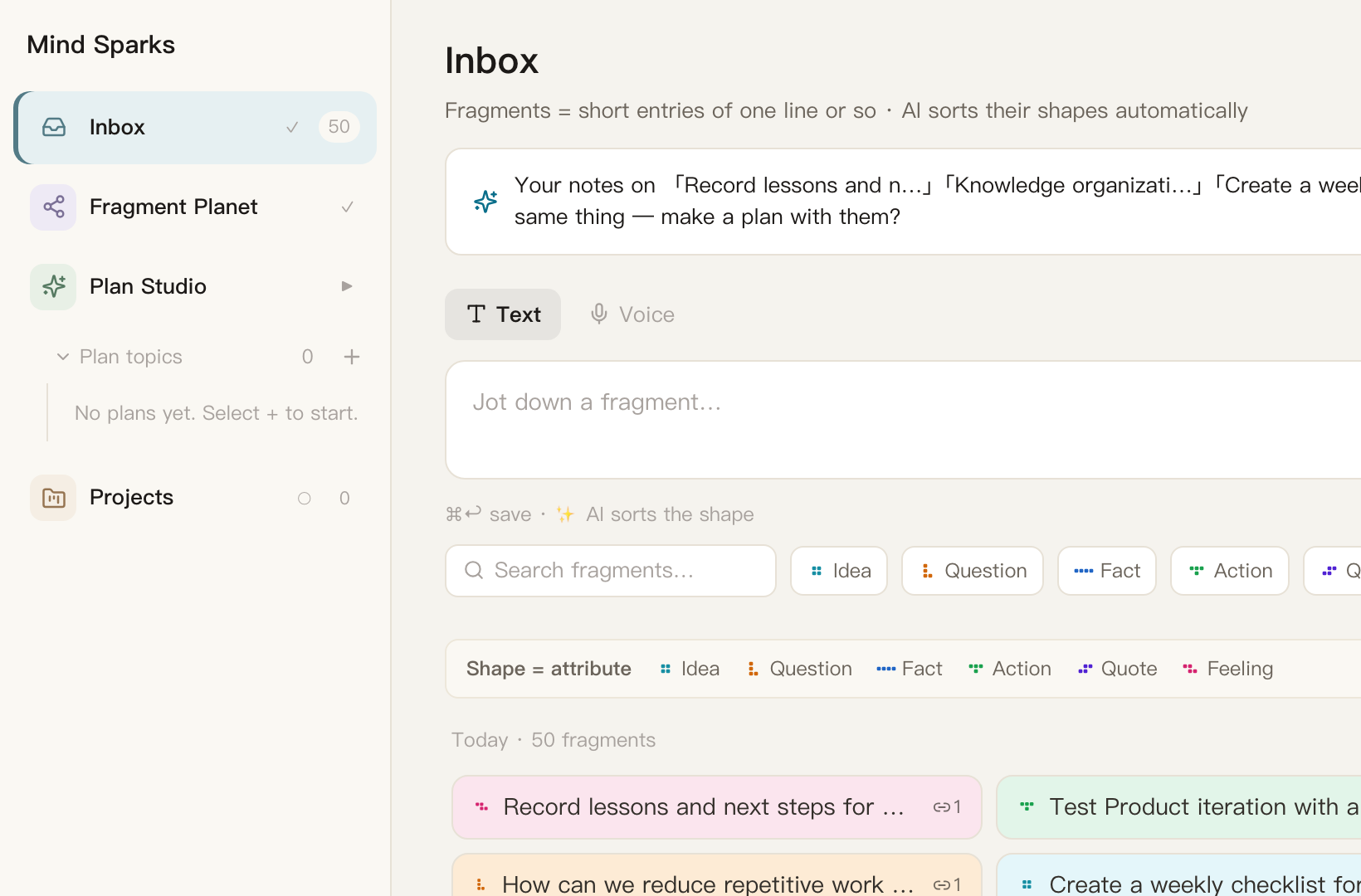
Save a text fragment and confirm it appears in Inbox. Check analysis policy in Settings → MindSparks and the model in Settings → AI. Voice capture needs microphone permission; URL capture needs an accessible page. Missing planet links require completed analysis and confirmed relations. Use Inbox if WebGL is unavailable. For failed plans check model, quota and selected sources before retrying. Find started projects in the project list.