
📎 Attachment Center Guide
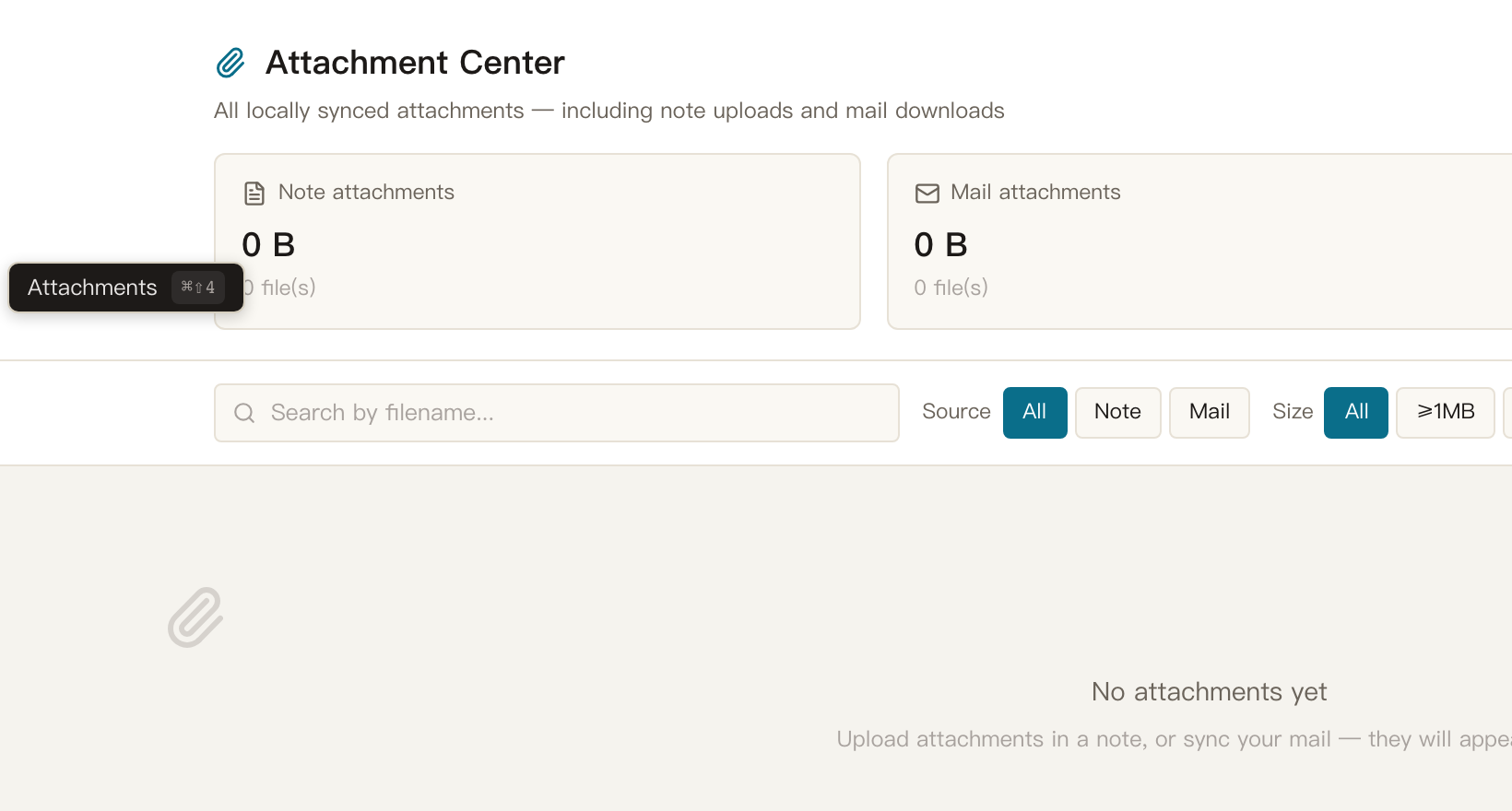
Use OKNote long enough and the files pile up — attachments dropped into notes, attachments arriving with mail. The Attachment Center brings them all onto one page: find a file, see what's using space, jump back to where it lives — one stop.
Click 📎 Attachment Center (⌘⇧4) in the module rail.
What's collected here
- Note attachments: every file you've uploaded through the "📎 Attachment" button in any note.
- Mail attachments: email attachments already downloaded to this machine (whether they download automatically is governed by "Auto-download attachments" and the size threshold in Settings → Mail).
Three stat cards sit at the top of the page: Note attachments, Mail attachments, All total — each showing space used and file count. Wondering what's eating your disk? This is all you need.
Four ways to find a file
Below the stat cards is a filter toolbar, and the filters combine freely:
- Search box: search by filename, filtering as you type.
- Source filter: All / notes only / mail only.
- Size filter: All / ≥1MB / ≥10MB / ≥100MB — when clearing out big files, hit ≥100MB first and everything jumps out at you.
- Sort: size descending, size ascending, newest, oldest, or by name.
There are also two switchable views:
- Grouped: attachments folded under their parent note or email; click a group name to expand it (groups with matches auto-expand when you search or filter by size).
- Flat: everything flattened into one list — combine with sorting for a full inventory.
Each row shows a file-type icon (image / video / audio / archive / spreadsheet / PDF / text, and so on), the filename, size, location, and date. Click "Load more" at the bottom of the list to page through.