
📮 AI mail assistance and note archiving
The AI features
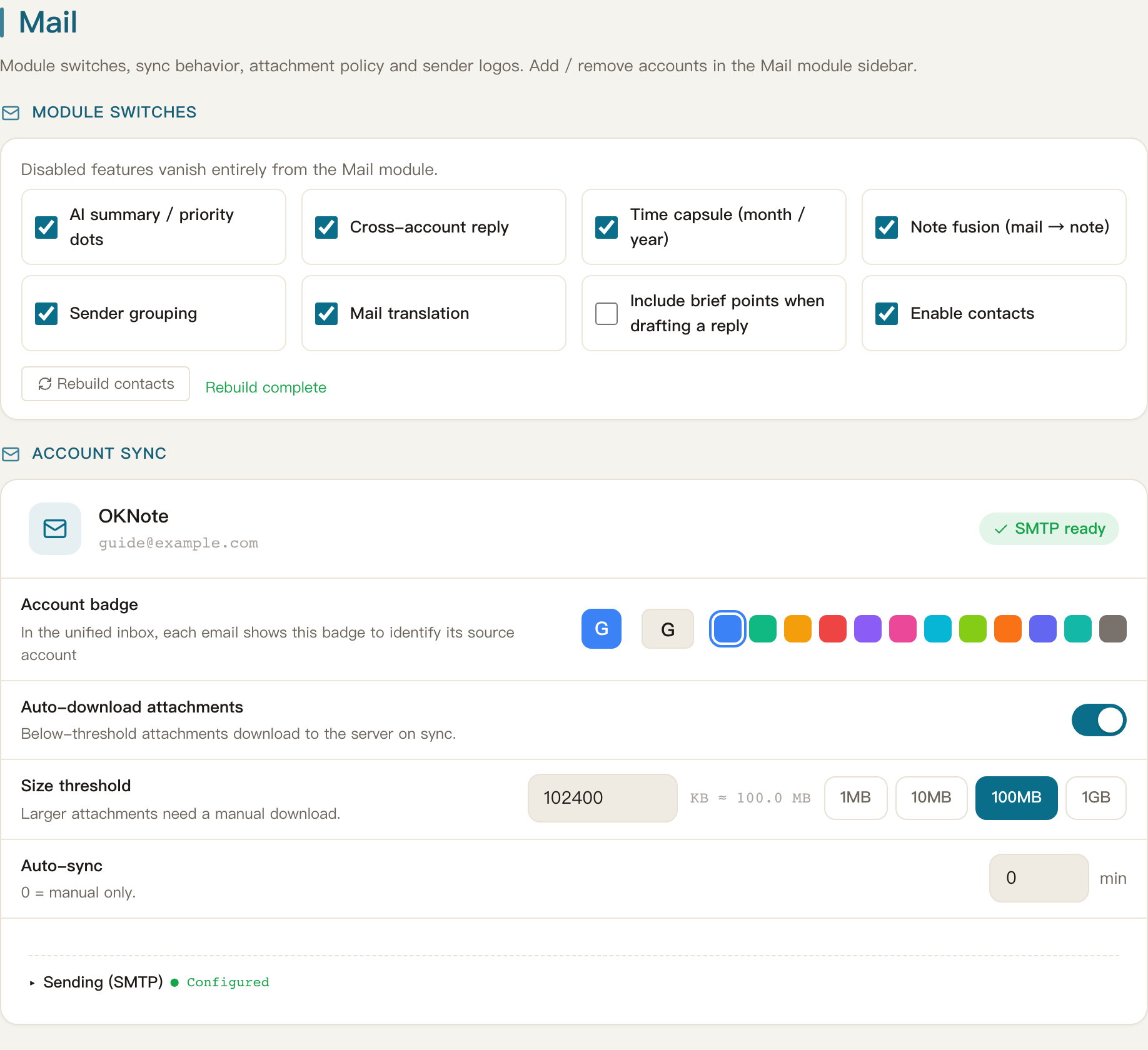
Prerequisite: finish AI setup first (see "🤖 AI Setup Guide"). The mail AI toggles live in Settings → Mail → Module switches.
AI summary: a screenful of mail in one minute
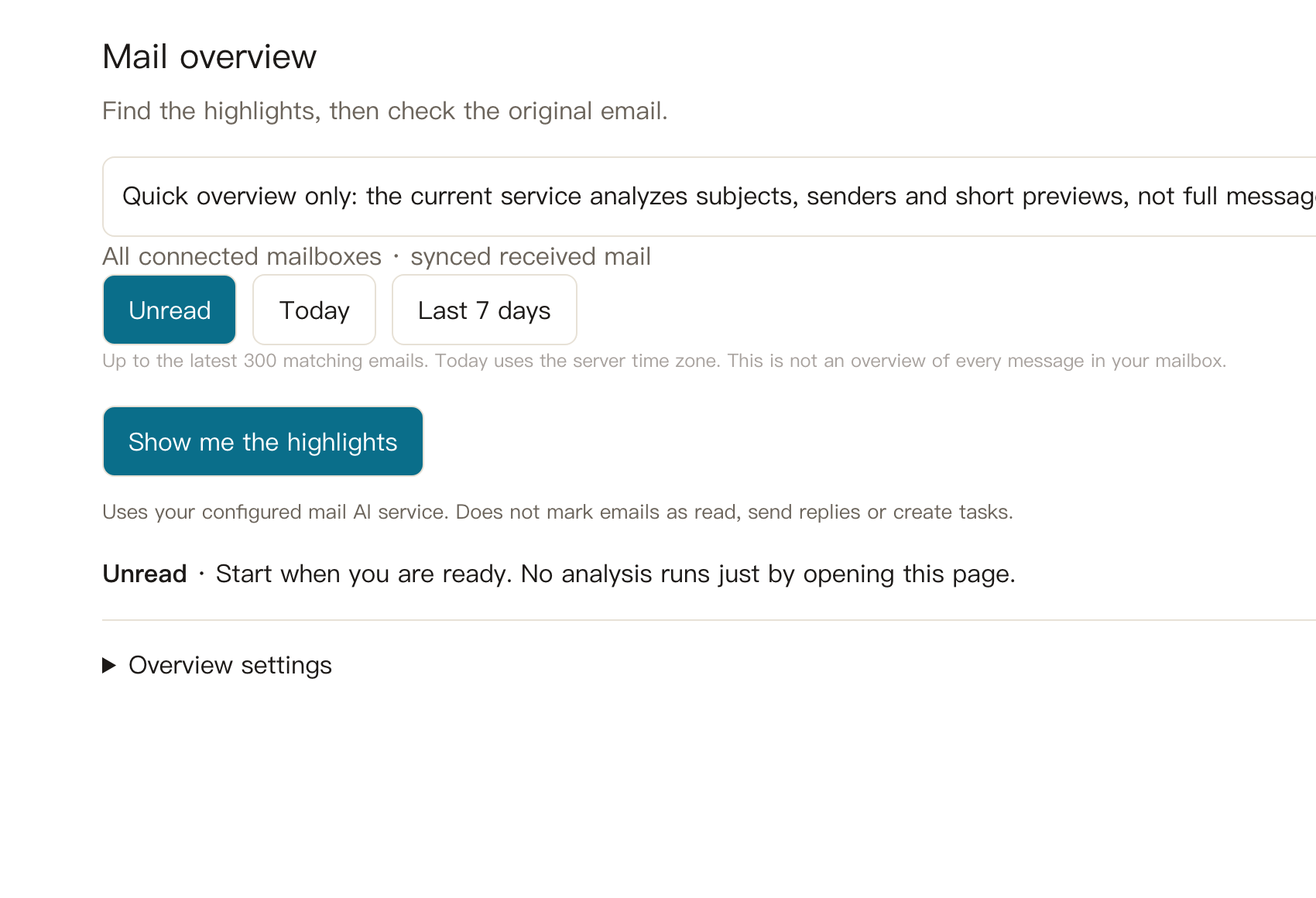
Sidebar → Smart views → "AI summary":
- Pick a scope (Unread / Today / This week).
- Pick a grouping rule and click "Generate now".
- The AI does a quick scan to flag the important messages, groups everything by your rule, and writes a one-line summary plus an urgency marker for each email. Click any card to jump to the original.
The companion "AI grouping rules" let you define your own categories (name + description + keywords). Three built-in templates ship with it — a daily work digest, a monthly finance report, and a weekly client report — copy one and adapt it.
AI draft reply: a reply in one click
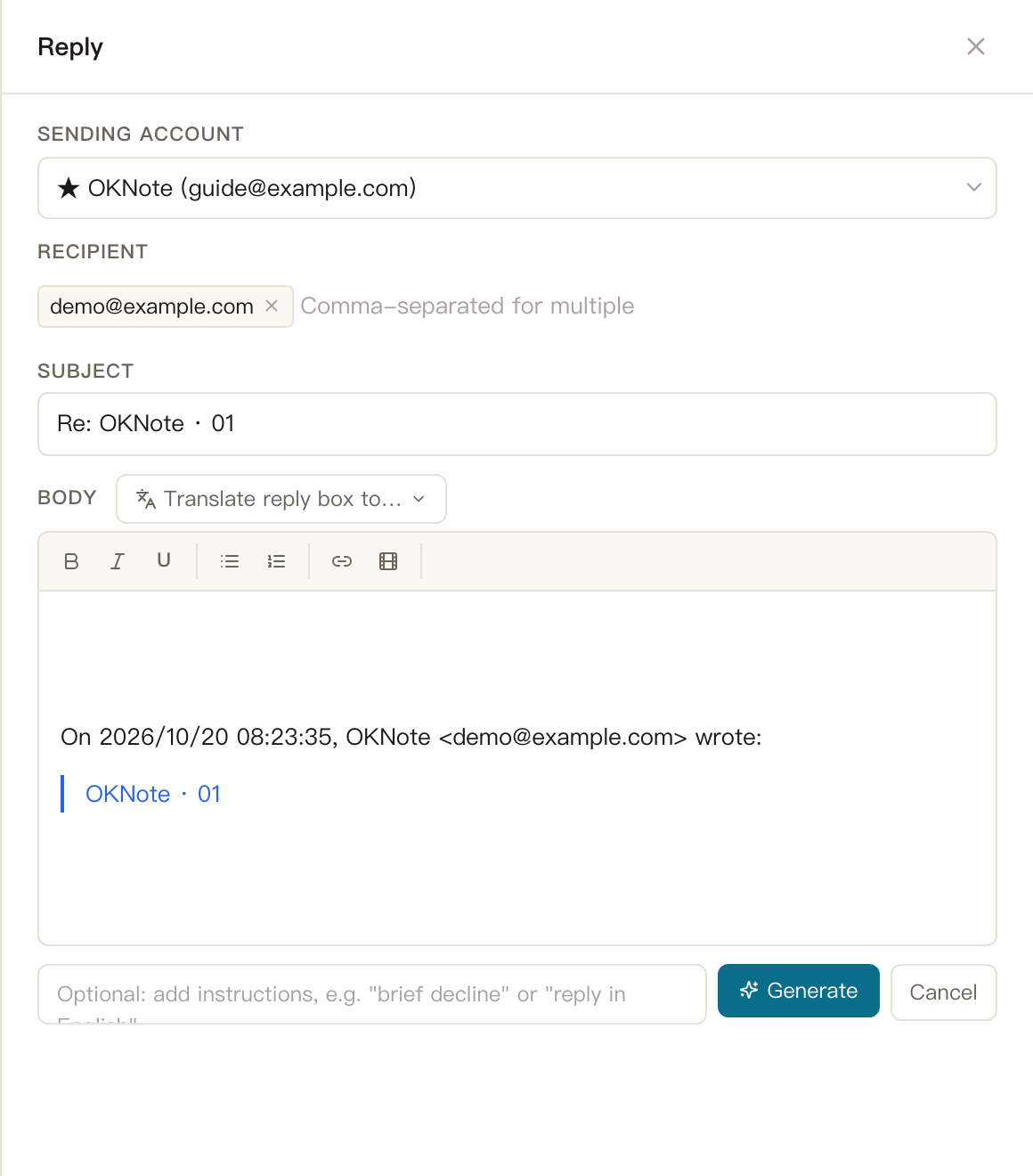
Open an email and click "AI draft reply" (at the bottom of the reading pane, or inside the reply drawer):
- You can generate with no input at all — the AI reads the original and drafts a well-mannered reply in the same language as the incoming mail.
- Or add a one-line instruction first, such as "keep it short and decline", "reply in Chinese", or "accept and propose a meeting next Tuesday".
- The draft drops straight into the editor — touch it up and send.
💡 Need to translate an incoming email? The current best approach is to use "AI draft reply" with an instruction for cross-language situations, or convert the mail to a note and use the translate action in the note AI panel.
Convert to note: file important mail into your knowledge base
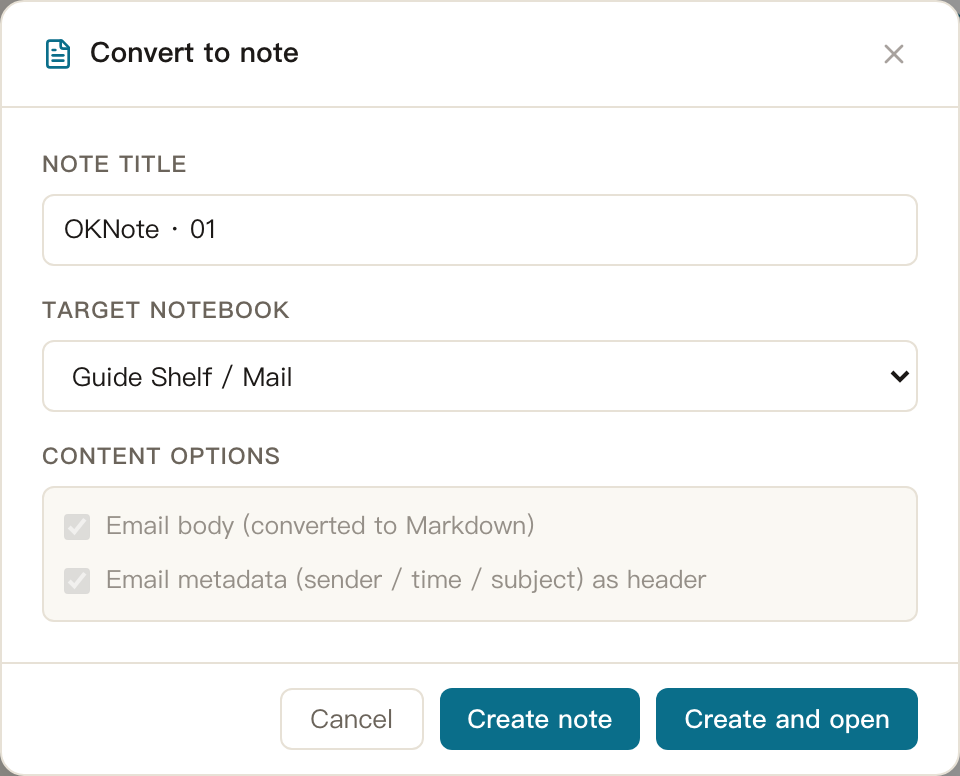
While reading a message, click "Convert to note": choose the target notebook and whether to include attachments, and the email body (formatting and images preserved) becomes a note — from then on you can edit, tag, and full-text search it like any other note.
Other smart views
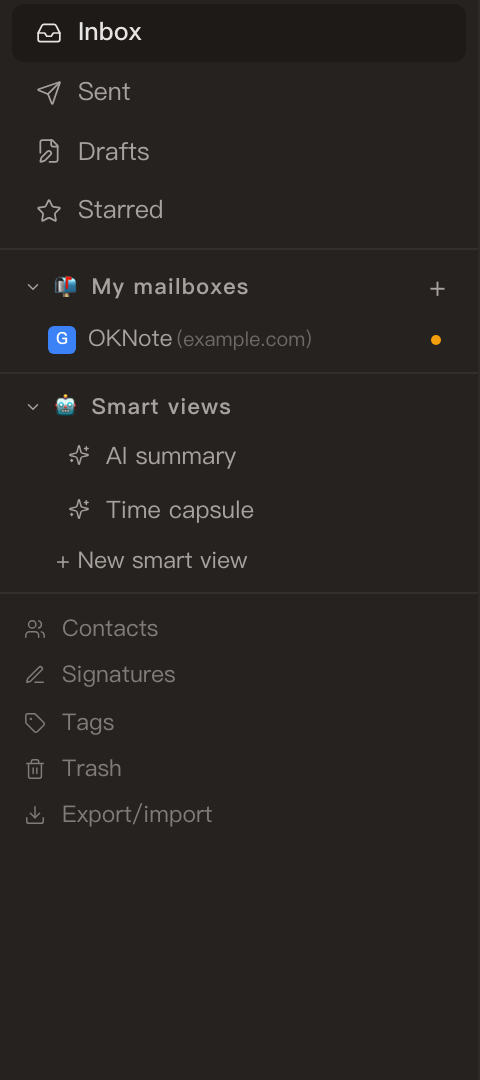
- Time capsule: browse your mail history by month or year — great for year-end retrospectives.
- Sender groups: statistics grouped by sender, so you can see at a glance who fills your inbox.