
✅ Tasks & Reports Guide
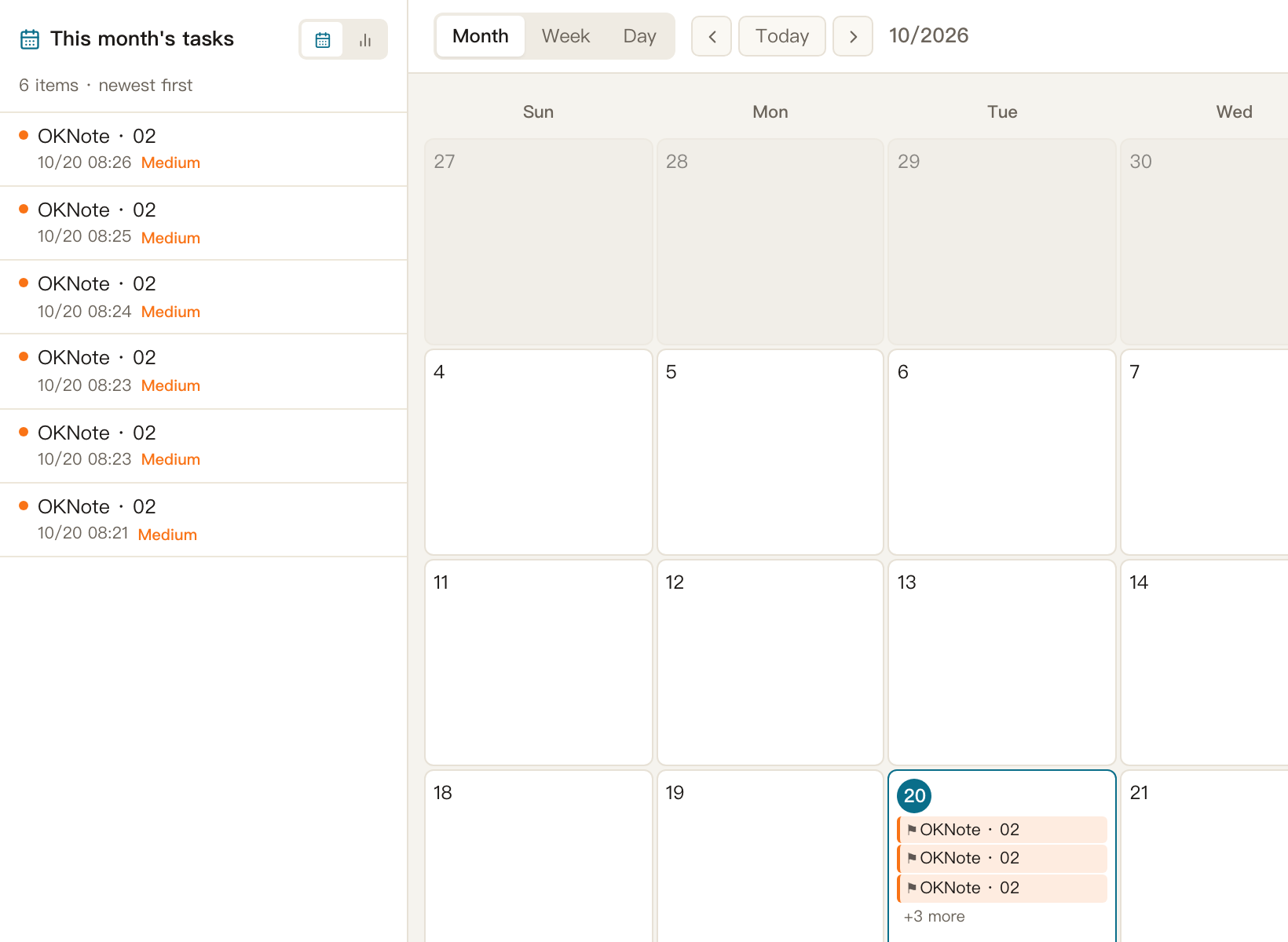
Click ☑️ Tasks (⌘⇧3) in the module rail. Two view buttons sit at the top — Schedule, Report — matching the two jobs of this module: planning your calendar and generating weekly and monthly reports.
Schedule view: tasks on a calendar
Switch to "Schedule" and your tasks take calendar form, with Month / Week / Day granularity (switch at the top; navigate with ◀ Today ▶).
- Month view: an overview of the whole month, with this month's task list alongside on the left.
- Week / Day views: come with a timeline. Click and drag on the timeline to block out a time slot and create a scheduled task; you can also create all-day tasks or tasks with just a due date.
AI quick task 🎯
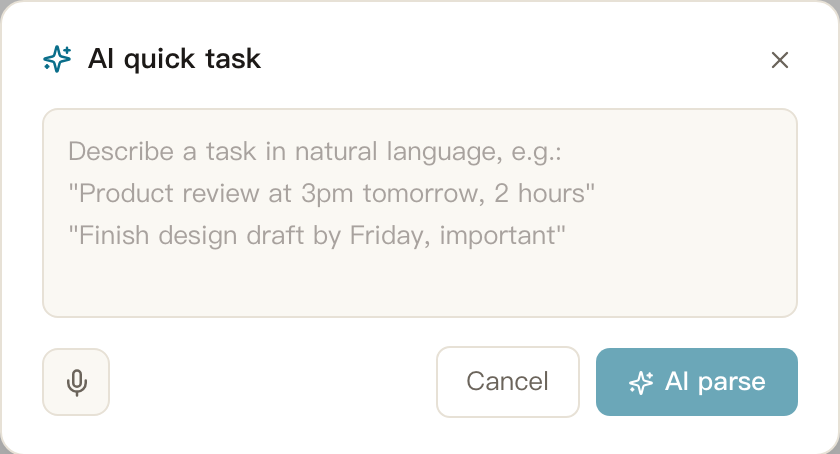
The Schedule view has an AI floating button at its bottom right. Open it and choose "AI quick task":
- Type in natural language, for example: "Product review with the team next Wednesday at 3pm".
- Voice input works too — tap the mic and just say it.
- Click "AI parse" and the AI splits out the title, date, and time; confirm and it's saved.
A few things worth knowing
- Under the hood, task data is a kind of note, so it syncs across devices, works offline, and lands in the notes Trash when deleted — restorable like any note.
- Report content is stored separately in its own report library; it won't clutter your note list.
- The data export in Settings → Export includes all your weekly and monthly reports.